
How to set up multi-factor authentication securely
Multi-factor authentication (MFA) adds another verification step beyond a password, helping protect accounts from unauthorised access and security breaches. To set up MFA, users should choose a verification method, enable it in their account security settings and confirm that recovery options work.
The process usually takes only a few minutes, but poor recovery planning can lock users out or weaken account security. The steps below explain how to enrol MFA, protect everyday access and manage it across Microsoft 365.
Key takeaways
- MFA adds protection beyond passwords.
- Secure recovery options before enrolment.
- Review MFA settings and access regularly.
Choose a verification method before enrolment
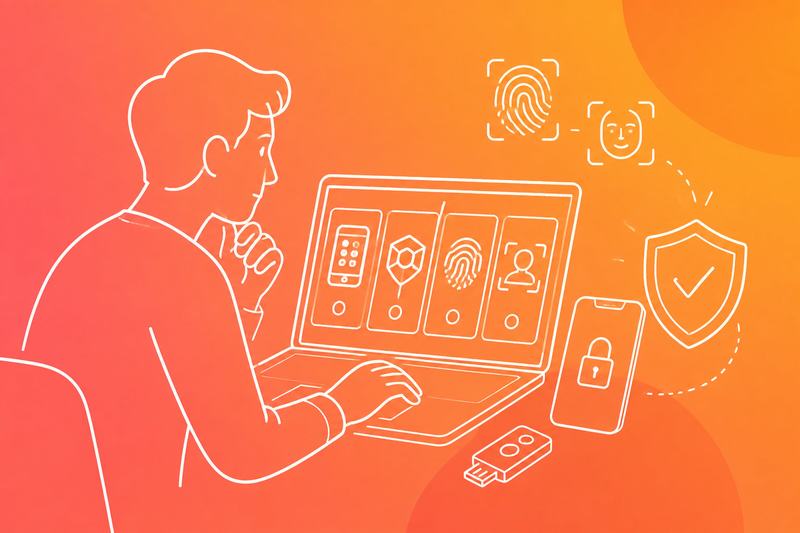
The chosen method affects account recovery, phishing exposure and support workload. The operator should match each method to the system’s risk, the user’s devices and the organisation’s recovery process before enrolment begins.
Understand authentication factors
MFA combines different factor types rather than asking for two passwords. The main categories are:
- Something the user knows: a password, PIN or passphrase.
- Something the user has: a registered phone, authenticator app, security key or passkey.
- Something the user is: a biometric such as facial recognition or a fingerprint.
A password remains vulnerable if someone steals it through phishing, malware or reuse. A second factor limits access, but its protection depends on how securely the user receives and approves it.
Authenticator apps such as Microsoft Authenticator, Google Authenticator, Authy and Duo can generate time-based one-time passwords, known as TOTP codes. They can also support number matching or approval prompts, but users must reject unexpected prompts and report repeated attempts. Biometric checks, including Windows Hello, usually unlock a device or credential rather than replace the underlying factor.
Compare apps, SMS and security keys
SMS text messages provide one-time password codes without requiring an app. They can help users who lack compatible devices, but attackers may redirect a number through social engineering, SIM replacement or mobile account takeover. Operators should treat SMS as a fallback rather than the preferred method for privileged or sensitive accounts.
An authenticator app avoids dependence on mobile reception and generally offers stronger protection than SMS. It still depends on the phone’s security, safe enrolment and a recovery process if the phone is lost. The operator should issue recovery codes securely and prevent staff from storing them with the primary device.
Physical security keys, including YubiKey devices from Yubico, provide a separate possession factor. They can support FIDO2 and WebAuthn, while passkeys use public-key cryptography and can use a device PIN or biometric unlock. The operator should register at least two keys or passkeys where policy permits, store the spare securely and test account recovery before enforcing MFA.
Prioritise phishing-resistant sign-in
Phishing-resistant MFA prevents a fraudulent website from collecting a reusable code or approval. Security keys and passkeys using FIDO2 or WebAuthn verify the legitimate website’s origin, so they provide stronger protection than TOTP codes, SMS codes and push approvals.
The operator should use phishing-resistant sign-in first for administrators, remote access, finance systems and accounts containing customer data. If the service supports only app prompts, the operator should enable number matching, display the sign-in location where available and train users to deny unexpected requests.
Enrolment must occur through a trusted service address or managed device. The operator should verify the user’s identity, record the registered factor and test sign-in without exposing recovery codes. Any fallback method should receive the same risk review as the primary method because attackers will target the weakest available option.
Register MFA in your account security settings
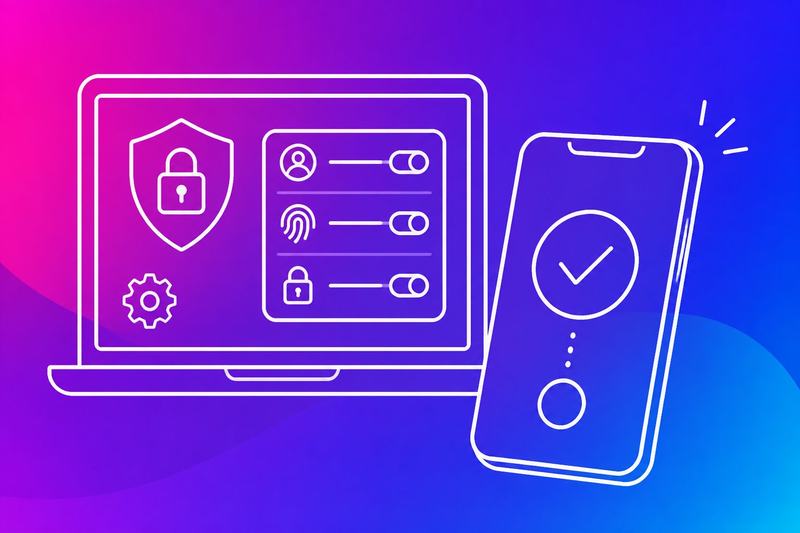
An administrator or user should confirm the account, select an approved verification method and register it from the provider’s security settings. They should then verify the method, test a fresh sign-in and store recovery options securely.
Find the relevant security controls
The user should open the provider’s security settings or account settings, not an email link or an unverified support message. Common labels include MFA, 2-step verification, two-step verification, additional verification and security info.
For a Microsoft account, the control appears under Security and may lead to Microsoft Authenticator, text messages, phone calls or Google Prompt where supported. A work or school account may use Microsoft 365, Outlook or OneDrive policies set by an administrator. Box provides its own security controls, which may restrict available methods.
The user should check the account name and domain before changing anything. If the page shows an unexpected sign-in, unfamiliar device or unauthorised method, they should stop, change the password from a trusted device and contact the administrator or provider.
Link an authenticator app with a QR code
The user should install the approved authenticator app from the official app store, then choose Add account, Set up MFA or a similar option in the security settings. The service normally displays a QR code and may also provide a manual setup key.
The user should scan the QR code only inside the authenticator app. They should not photograph it, send it through email or store it in an ordinary notes app because anyone with the code may generate valid sign-in codes. If the device cannot scan, they can enter the manual key instead.
Some services use push notifications rather than one-time codes. Microsoft Authenticator can support approval prompts and Google Prompt can send a sign-in request to a trusted device. The user should reject any unexpected prompt and report repeated unsolicited MFA prompts.
Verify the method and test a sign-in
The service usually asks for a six-digit verification code, an approval in the authenticator app or another confirmation. The user should enter the current code promptly, since time-based codes expire and repeated failures may trigger a temporary block.
After registration, the user should sign out or use a private browser window and complete a new sign-in. They should confirm that the expected MFA prompt reaches the registered device and that rejecting the prompt prevents access.
The user should record recovery codes in a password manager or another protected location and add a second approved method where policy permits. They should not save recovery codes with the password or share them with colleagues. An administrator should remove lost devices and old methods from the security settings immediately.
Protect recovery options and everyday access
Recovery codes, a second authentication method and careful handling of unexpected MFA prompts help prevent lockouts and account takeover. Operators should protect each option as seriously as the primary password and review access when devices or staff roles change.
Store recovery codes securely
If an attacker obtains recovery codes, they may bypass MFA without the registered device. The account owner should generate codes through the official account settings, store them in a password manager or an encrypted offline record and never save them in email, chat or an unprotected text file.
The owner should use each code only once and mark it as used. After using one, they should generate a new set and remove the old set from every location. A password manager should have a strong, unique password and MFA enabled, because exposing it could expose both the recovery codes and other credentials.
Access should be limited to authorised staff. Printed codes should remain in a locked location with controlled access, while digital copies should use encryption and appropriate device protections.
Add a resilient backup method
Losing a phone, changing a number or damaging a security key can block legitimate access. The account owner should register a second method, such as another security key kept in a secure location or an authenticator app on a separately protected device.
SMS can provide a fallback, but it faces risks such as number takeover and interception. It should not replace a security key or authenticator app where stronger methods are available. Each backup method should use a different device or storage location so one incident does not remove every option.
The owner should test the backup method during setup, record who controls it and review it after staff changes. They should remove lost devices, old phone numbers and former staff access promptly. Password security still matters because attackers may use credential stuffing against accounts that reuse passwords.
Respond safely to unexpected prompts
An unexpected MFA prompt may indicate that someone knows the password and is attempting to sign in. The user should deny the request, avoid approving repeated prompts and report the event through the organisation’s security process.
The user should not disclose a code to anyone by phone, email or chat. Phishing attacks often imitate support staff and ask for an MFA code, a recovery code or approval of a prompt. Legitimate support should not require those secrets.
After a suspicious prompt, the account owner should change the password from the official site, review active sessions and revoke unfamiliar devices or tokens. They should check recovery details, confirm that the security key or authenticator remains under their control and investigate related sign-in alerts.
Deploy and maintain MFA for Microsoft 365
Microsoft 365 administrators should combine Microsoft Entra ID controls with practical user support. They need to enforce multifactor authentication, protect privileged access and review sign-in risk without locking legitimate users out.
Enable security defaults or conditional access
Security defaults provide a straightforward baseline for tenants without advanced access requirements. They require MFA registration, protect administrative accounts and block older authentication methods. An IT administrator can enable them in Microsoft Entra ID under Properties > Manage security defaults.
Larger organisations should use Conditional Access policies for more precise control. Policies can require MFA for administrators, impose stronger controls on risky sign-ins and restrict access from unsupported devices. The administrator should begin in Report-only mode, review the results and exclude only documented emergency access accounts.
For sensitive services, the policy should require phishing-resistant MFA where licensing and device support allow it. Windows Hello for Business, passkeys and compatible security keys can provide stronger protection than an SMS code. The administrator should also block legacy authentication, which cannot reliably enforce modern MFA controls.
Support users with device changes
Device replacement, loss or number changes can interrupt access to a work or school account. The IT administrator should publish a recovery process before deployment, including identity verification, help desk checks and removal of the old authentication method.
Users should register more than one approved method where policy permits. Microsoft Authenticator, Windows Hello for Business, passkeys and security keys each provide different recovery options. A second method should remain under the user’s control and should not share the same failure point as the primary device.
Administrators should use Microsoft Entra ID authentication methods to remove lost devices, revoke active sessions and require registration of a replacement method. They should avoid clearing all methods without confirming another route into the account. Emergency access accounts need protected credentials, separate storage and regular sign-in testing.
Review policies and high-risk access
An IT administrator should review sign-in logs, audit logs and Conditional Access results regularly. These records show whether MFA succeeded, which policy applied and whether users encountered repeated failures. Administrators should investigate unfamiliar locations, impossible travel alerts, unusual device registrations and repeated authentication prompts.
Security policies should apply stronger controls to privileged roles and high-risk applications. Administrators can require phishing-resistant MFA, compliant devices or approved locations for sensitive operations, then block access when risk exceeds the organisation’s threshold.
Policy changes should follow a documented test process. Administrators should use report-only evaluation, pilot groups and change records before wider enforcement. They should review exclusions after staff changes and confirm that emergency access accounts still work without weakening controls for ordinary users.
Frequently asked questions
Multi-factor authentication (MFA) adds a second check, such as an authenticator app, security key or text message, after a password. Users should register a backup method and store recovery codes securely to prevent lockouts if their main device becomes unavailable.
How do I activate multi-factor authentication for the first time?
The user should sign in to the relevant account and open Security, Sign-in security or Account settings. They should select Multi-factor authentication, Two-step verification or a similar option, then follow the registration prompts.
The service may display a QR code. The user can scan it with an authenticator app, enter the generated code and confirm the setup. They should register a second method or save recovery codes before signing out.
Which authentication method should I choose for multi-factor authentication?
An authenticator app usually provides stronger protection than SMS because attackers can sometimes intercept text messages through number-porting or social engineering. A hardware security key offers strong phishing resistance and suits administrators or users who manage sensitive systems.
SMS can provide access when other methods are unavailable, but it should serve as a fallback where possible. The user should choose a method they can access reliably and add a separate backup method.
How do I set up Microsoft Authenticator for my work account?
The user should install Microsoft Authenticator from the Apple App Store or Google Play Store. They should then sign in to their organisation’s Microsoft security registration page and choose Add sign-in method followed by Authenticator app.
The user should open Authenticator, select Add account, choose Work or school account and scan the QR code shown on the registration page. They should approve the test notification or enter the displayed code to complete registration.
If the QR code does not scan, the user can select the manual setup option and enter the account details provided by Microsoft. They should not approve an unexpected sign-in notification because it could indicate a password compromise.
How do I enable multi-factor authentication in Microsoft 365 and Outlook?
A Microsoft 365 administrator can enable MFA through the Microsoft Entra admin centre, under Protection and Conditional Access, subject to the organisation’s licence and policy. The administrator should apply the policy to a test group first, exclude emergency access accounts appropriately and require users to register an approved method.
For smaller deployments, the administrator may use per-user MFA if the tenant still supports it. Users then register through the Microsoft security information page and Outlook prompts for the second factor at the next sign-in.
Administrators should check service accounts, shared mailboxes and older mail clients before enforcement. Unsupported clients may fail to connect, while shared accounts can create audit and access-control risks.
How do I set up multi-factor authentication on an iPhone or Samsung phone?
On an iPhone, the user should install an approved authenticator app from the App Store, open the account’s security settings and scan the registration QR code. On a Samsung phone, the user should install the app from Google Play and follow the same account registration process.
The user should allow notifications only when needed and protect the phone with a passcode, biometric lock or both. They should confirm that the phone has the correct time and that the authenticator app can generate codes before ending the setup session.
The user should avoid installing authenticator apps from unofficial websites. They should also keep the phone’s operating system and security updates current.
What should I do if I lose my phone or cannot access my authentication app?
The user should contact the organisation’s help desk or account administrator and request identity verification before MFA reset. They should use a registered backup method or recovery code if the service provides one.
After regaining access, the user should remove the lost device from the account, revoke its sessions and register a replacement device. If the phone may have been stolen, the user should contact the mobile provider, change the account password and report any suspicious sign-in approvals.